What you'll learn:
- Shadow systems theory — the mental model for choosing between methods
- Shadow Maps (Legacy) — the classic UE4-era approach and its artifacts
- Virtual Shadow Maps — how tiled/cached shadows work in UE5
- Distance Field Shadows — precomputed soft shadows for large environments
- Hardware Ray Traced Shadows — physically accurate penumbras
- MegaLights — UE5.5's experimental stochastic direct lighting
Section 10: Shadow Systems Theory (5 min)
UE5 provides multiple shadow systems. Most modern UE5 projects use Virtual Shadow Maps (VSM), but it's important to understand the full landscape — including the legacy approach.
| Method | How It Works | Best For |
|---|---|---|
| Shadow Maps | Traditional shadow mapping — uses CSM for Directional Lights, standard shadow maps for local lights | Legacy projects, non‑VSM workflows, simpler tuning |
| Virtual Shadow Maps (VSM) | Rasterized shadow maps with intelligent tiling/caching | Default choice — works on any GPU |
| Distance Field Shadows | Pre-computed mesh distance fields for soft area shadows | Large environments, long-distance soft shadows |
| Hardware Ray Traced | Real-time ray casting via RTX/DXR | Cinematics, accurate area light shadows |
| MegaLights | A renderer optimization for handling many dynamic lights efficiently (changes how you budget lights, not a "shadow algorithm" by itself) | Dense scenes with lots of fixtures (cities, interiors), gameplay lighting with many small lights |
Terminology Note: Shadow Maps is the method (project setting). Cascade Shadow Maps (CSM) is a technique within that method, specifically used for Directional Lights. Local lights (Point, Spot, Rect) use traditional shadow maps without cascades.
It's useful to think in three layers:
- What data does the shadow system use? (depth map, virtualized depth, distance field, ray hits)
- How does it produce softness? (filtering/approximation vs true area-light sampling)
- What breaks first? (aliasing, shimmering, temporal instability, resolution limits, noise)
1) What data is being queried?
- Shadow Maps / CSM: a depth texture from the light's point of view.
- VSM: still depth-based, but virtualized (tiled/cached) so it can allocate much more effective resolution.
- Distance Fields: a signed distance representation of meshes (precomputed) used to estimate occlusion.
- Hardware RT: ray queries against scene geometry (more physically grounded, more expensive).
2) How does "softness" happen?
- Shadow Maps / CSM: softness is typically a filtering trick applied to a fundamentally binary "in shadow / not in shadow" test.
- VSM: softness is generally an approximation driven by light size and distance (often looks great, but it isn't true area sampling).
- Distance Fields: softness comes from the distance information itself, which can produce pleasing large-scale soft shadows.
- Hardware RT: softness comes from sampling the light's area (closest to real penumbra behavior).
3) What problems should you expect?
- Shadow Maps / CSM: limited resolution and cascade boundaries can show up as aliasing, shimmering, and "popping."
- VSM: can show temporal instability (cache/page updates) during fast motion.
- Distance Fields: can show resolution artifacts depending on mesh DF quality and scale.
- Hardware RT: can introduce noise (and cost) depending on sample count and motion.
- Default for most projects: VSM (good quality, broad hardware support).
- Huge worlds / long-distance soft shadows: consider Distance Field Shadows (especially for far-range softness).
- Hero shots / accurate area-light penumbra: consider Hardware Ray Traced Shadows (budget permitting).
- Legacy pipelines / compatibility / existing tuning: Shadow Maps (CSM) still matters.
- Section 8 — Shadow Maps Method (Legacy): the classic workflow you'll still encounter, plus why it produces certain artifacts.
- Section 9 — Virtual Shadow Maps: how the tiled/virtual approach changes quality, performance, and motion behavior.
- Section 10 — Distance Field Shadows: where DF shines, what "resolution limits" actually look like, and the key constraints.
- Section 11 — Hardware Ray Traced Shadows: when RT shadows are worth it, and how to reason about cost vs accuracy.
- Section 12 — MegaLights: when lots of dynamic shadowed lights are needed, and how MegaLights changes the cost model.
Next, we'll start with Shadow Maps (Legacy) so you can recognize (and troubleshoot) the common failure modes that the modern systems were designed to improve.
Section 11: Shadow Maps Method (Legacy) (5 min)
The Shadow Maps method is the classic UE4-era approach — it's a project-level setting that determines how all dynamic shadows are rendered. Within this method, different light types use different techniques:
| Light Type | Shadow Map Technique |
|---|---|
| Directional Lights | Cascade Shadow Maps (CSM) — splits view into distance-based cascades |
| Point Lights | Standard shadow map (rendered as 6 faces of a cube) |
| Spot Lights | Standard shadow map (single projection) |
| Rect Lights | Standard shadow map (single projection) |
| Shadow Maps | VSM |
|---|---|
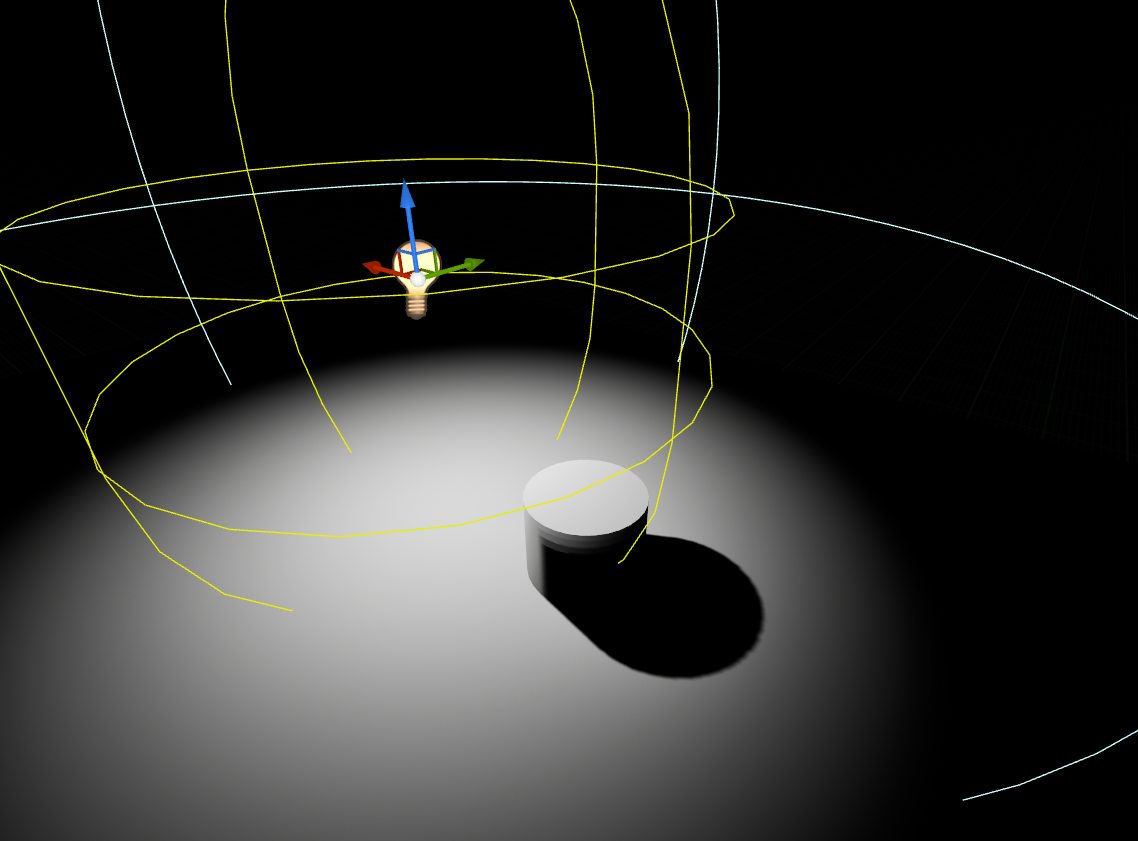 Shadow Maps Shadow Maps | 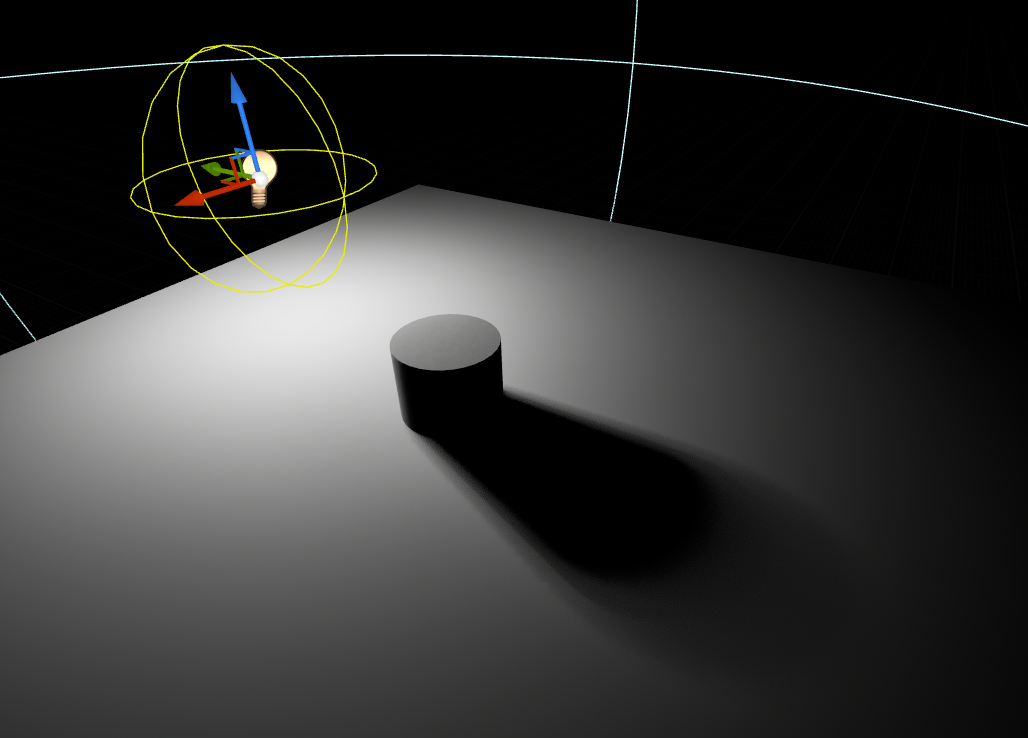 VSM Shadow VSM Shadow |
Cascade Shadow Maps split the camera's view frustum into multiple distance bands ("cascades"), each with its own shadow map:
- Near camera = highest resolution shadows
- Far from camera = lower resolution shadows
This technique addresses the resolution problem unique to Directional Lights — they illuminate the entire scene, so a single shadow map would be stretched too thin.
- Shadow Maps dynamic shadows are relevant for Stationary and Moveable lights.
- Static lights normally rely on baked shadows (Lightmass). If you're using Force No Precomputed Lighting, you won't get baked shadows anyway.
- You're maintaining a legacy project or pipeline that already relies on Shadow Maps tuning
- You're intentionally avoiding VSM for compatibility or simplicity reasons
In project settings:
Edit → Project Settings → Engine → Rendering → Shadows → Shadow Map Method
- Shadow Maps = Traditional shadow mapping (CSM for Directional, standard for local lights)
- Virtual Shadow Maps = Modern VSM workflow
(TODO: Add screenshot of Shadow Map Method setting.)
When using the Shadow Maps method, CSM tuning for Directional Lights happens in the light's Details panel:
- Dynamic Shadow Distance (MovableLight / StationaryLight): how far CSM shadows render
- Num Dynamic Shadow Cascades: how many cascades (more = higher quality, higher cost)
- Cascade Distribution Exponent: pushes more resolution near camera (higher = tighter near camera)
- Cascade Transition Fraction: blends between cascades to reduce visible "bands"
Tip: If you see cascade "popping" while moving the camera, increase the transition fraction and/or adjust the distribution exponent.
All lights using the Shadow Maps method produce hard shadows by default:
| Light Type | Why Hard Shadows by Default |
|---|---|
| Directional Lights | CSM technique stores depth comparisons — inherently sharp-edged |
| Point / Spot / Rect Lights | Default Source Radius = 0 — represents a point source, which creates hard shadows |
This is a fundamental limitation of depth-based shadow mapping. The shadow map stores "is this pixel in shadow?" as a binary yes/no, resulting in sharp edges.
To get soft shadows in Shadow Maps mode, you have two options:
Option 1: PCSS Filtering (affects all lights)
r.Shadow.FilterMethod 1
This enables Percentage-Closer Soft Shadows (PCSS), which dynamically adjusts shadow softness based on the distance between occluder and receiver.
Note: PCSS adds a performance cost and may introduce aliasing artifacts in some scenarios.
Option 2: Increase Source Radius (local lights only)
For Point, Spot, and Rect lights, increasing the Source Radius property (or Source Width/Height for Rect Lights) will produce softer shadows — but only when combined with PCSS or other filtering.
- Hard shadow edges: All lights produce hard shadows by default
- Cascade lines / popping: (Directional only) transitions between cascades become visible during movement
- Aliasing / stair-step edges: limited resolution, especially in mid/far cascades
- Shadow "swimming": (Directional only) subtle instability as the cascades re-fit around the camera
Section 12: Virtual Shadow Maps (5 min)
VSM is UE5's default shadow system — enabled automatically when you create a project.
VSM Shadow
VSM uses massive 16K×16K shadow textures split into tiles, with different structures per light type:
| Light Type | VSM Structure |
|---|---|
| Directional | Clipmap — expanding ranges around camera, each level is 16K covering twice the radius of the previous |
| Spot | Single 16K VSM with mip chain for level of detail |
| Point | Cube map of 16K VSMs (one per face) |
| Rect | Single 16K VSM with mip chain specialized for rectangular projections and soft area shadowing |
- Scene is divided into pages/tiles
- Only visible tiles get rendered
- Tiles near camera get higher resolution
- Distant tiles get lower resolution
- Results are cached and reused across frames
Note: Local lights provide significant resolution increase vs traditional shadow maps, but very large local lights can run out of virtual resolution. Use Directional Lights for large-scale shadows.
VSM is the right default for most projects:
- Works with all light mobilities (Static, Stationary, Moveable)
- Works on any GPU — no special hardware required
- Excellent shadow detail and resolution
- Handles many lights efficiently
- Good performance with static or slow-moving content
VSM behaves differently depending on distance and mesh type:
Far Distance:
- Nanite vs Non-Nanite meshes may have different shadow behavior at long distances
- VSM clipmaps handle this automatically, but you may see quality differences
Close Distance:
- Generally excellent detail due to high virtual resolution
- The clipmap system allocates more pages near the camera
VSM builds quality over multiple frames through temporal accumulation. When the camera or objects move quickly:
- Flickering at shadow edges
- Shimmering artifacts
- A "crawling" look during camera motion
This isn't a bug — it's the cache updating. Usually subtle, but noticeable on fast-moving shots.
VSM calculates soft shadows mathematically based on Source Radius/Angle and distance. The softness looks good, but it's an approximation — all lights produce the same generic soft edge regardless of their actual shape.
Penumbra noise is controlled by ray count. At Epic scalability, both local and Directional Lights use 8 rays by default.
| Console Variable | What It Controls |
|---|---|
r.Shadow.Virtual.SMRT.RayCountLocal | Rays for local lights (Point, Spot, Rect) |
r.Shadow.Virtual.SMRT.RayCountDirectional | Rays for Directional Lights |
r.Shadow.Virtual.SMRT.SamplesPerRayLocal | Samples per ray (local) |
r.Shadow.Virtual.SMRT.SamplesPerRayDirectional | Samples per ray (Directional) |
- Fewer rays = visible noise in penumbra
- Setting to 0 = disables SMRT, reverts to single-sample hard shadows
Most VSM controls live under these namespaces:
r.Shadow.Virtual.*— general VSM settings (resolution, caching, page management)r.Shadow.Virtual.SMRT.*— soft shadow ray tracing settings (ray counts, samples)
Tip: Use
r.Shadow.Virtual.in the console and press Tab to see all available options.
To visualize how VSM is working, use the viewport debug modes:
Show → Virtual Shadow Map → [Visualization Mode]
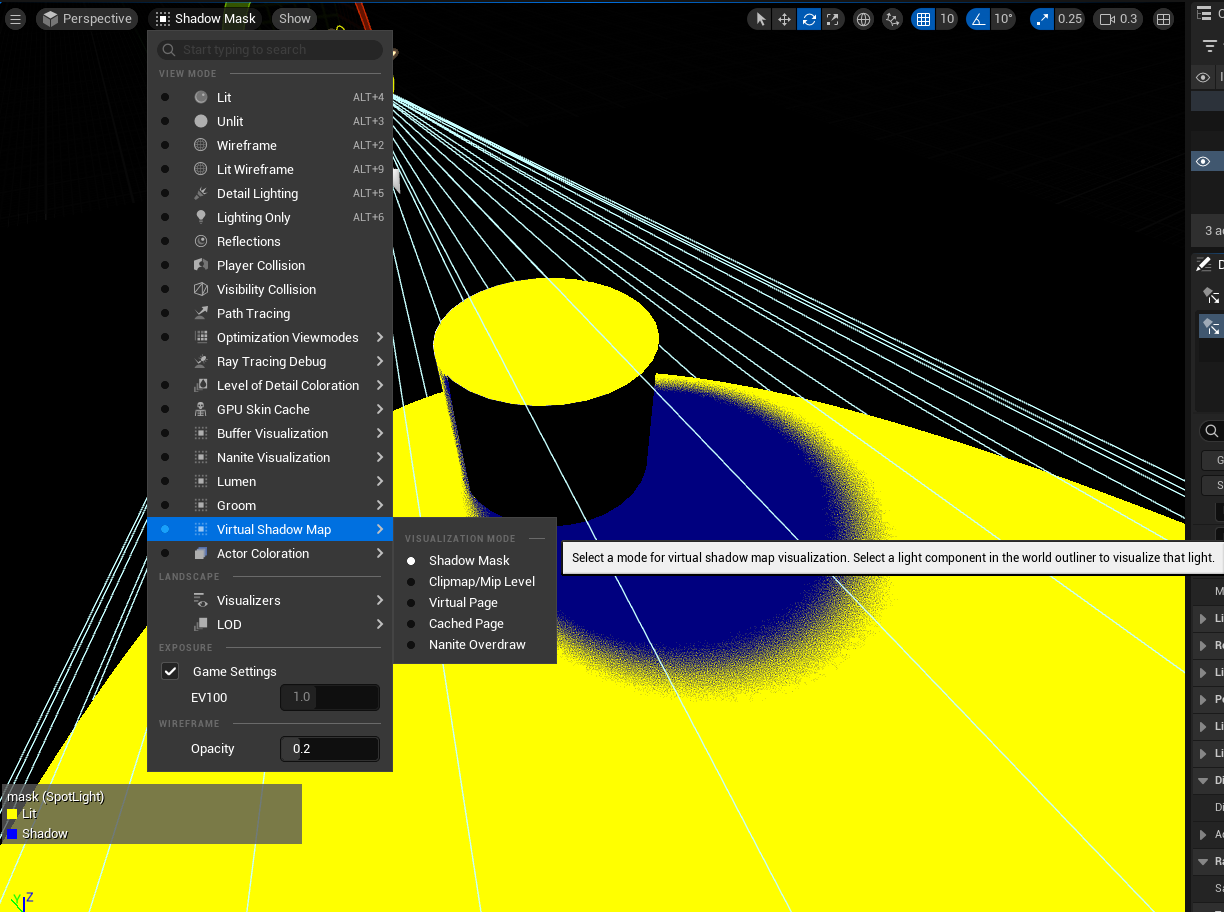 VSM Debug Visualization
| Mode | What It Shows |
|---|---|
| Shadow Mask | Which areas are in shadow |
| Clipmap/Mip Level | Resolution distribution across the scene |
| Virtual Page | How pages are allocated |
| Cached Page | Which pages are being reused |
Tip: VSM is already enabled by default. You don't need to change any settings unless you want to use a different shadow system.
Section 13: Distance Field Shadows (8 min)
Distance Field Shadows use pre-computed Mesh Distance Fields to create soft area shadows.
Important: Distance Field Shadows only work with Stationary and Moveable lights. Static lights cannot use Distance Field shadows.
| VSM (Default) | Distance Field |
|---|---|
| VSM Shadow | 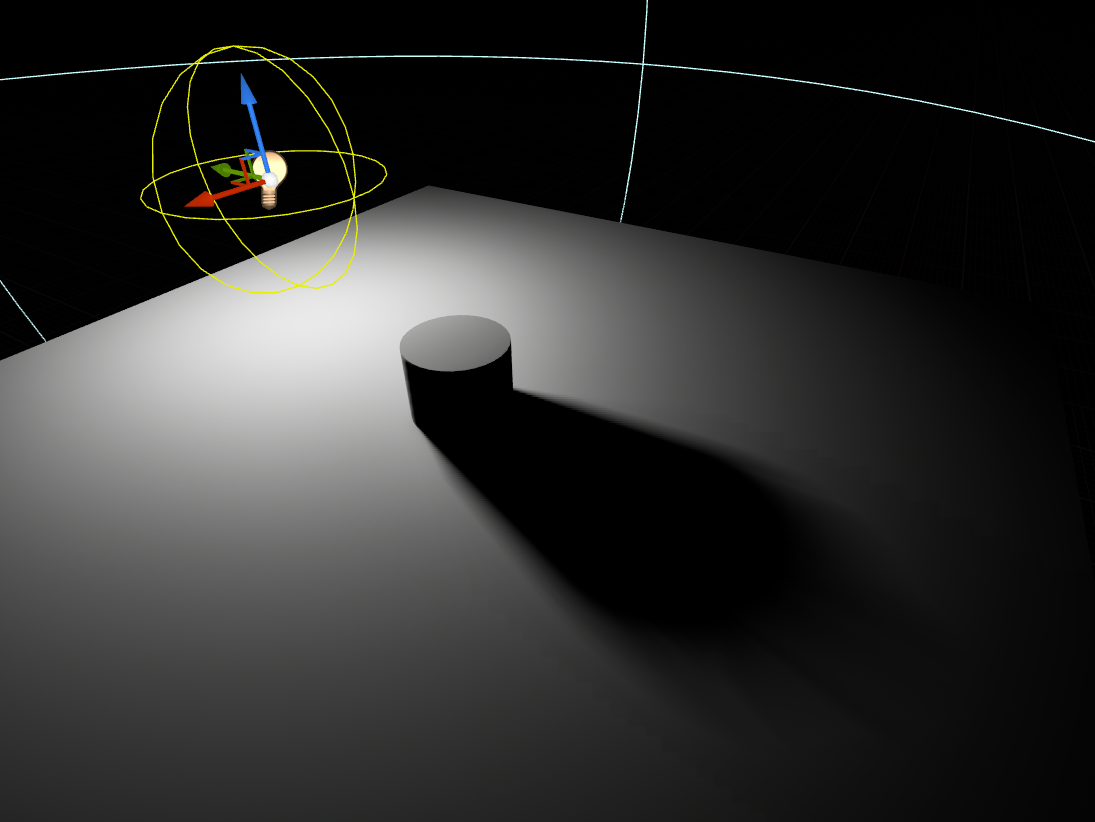 DF Shadow DF Shadow |
Notice how Distance Field shadows have a different softness character — they use the mesh's distance field data rather than mathematical blur.
A distance field stores, for every point in space around a mesh, how far away the nearest surface is. This pre-computed data lets the engine quickly determine shadow coverage without tracing individual rays.
Distance fields are generated at mesh import time, but the system must be enabled in project settings.
Enable Mesh Distance Fields
Required for Distance Field Shadows.
Edit → Project Settings → Engine → Rendering → Software Ray Tracing☑ Generate Mesh Distance Fields
After enabling, reimport meshes or restart the editor for distance fields to generate.
Per-Light Enable:
 Distance Field Shadows Setting
- Select the light actor
- Details panel → Distance Field Shadows: Enabled
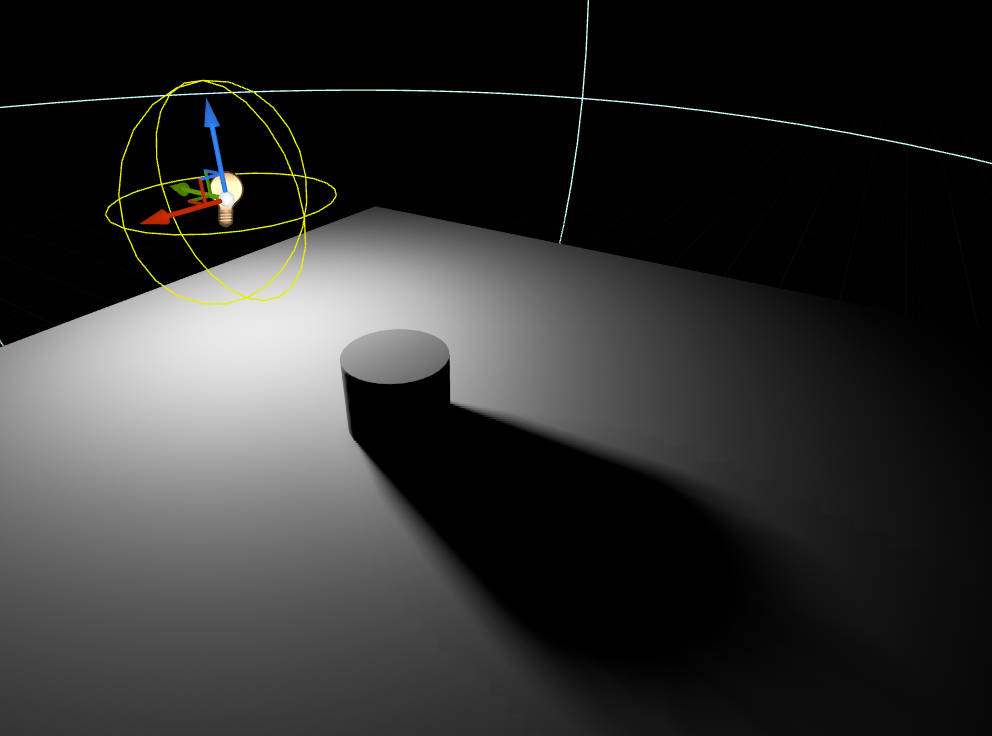 Distance Field Settings
This is an important distinction for Directional Lights:
| Shadow System | Distance Field Behavior |
|---|---|
| CSM (Shadow Maps) | Distance Fields and CSM work together. You can use both simultaneously — CSM for near shadows, Distance Fields for distant soft shadows. You can also disable CSM entirely and use only Distance Fields. |
| VSM (Virtual Shadow Maps) | Distance Fields and VSM are mutually exclusive for Directional Lights. You choose one or the other — enabling Distance Field Shadows disables VSM for that light, and vice versa. CSM settings have no effect when using VSM. |
Why the difference? CSM and Distance Fields are separate systems that can complement each other. VSM is a unified system that replaces both — it handles near and far shadows internally, so Distance Fields become an alternative rather than a supplement.
Good for:
- Large open worlds with distant shadows
- Soft area shadows from Directional Lights
- Stylized projects where approximate softness is acceptable
Limitations:
- Resolution depends on distance field quality
- Thin geometry may not cast accurate shadows
- Memory overhead from distance field data
- Less accurate than hardware ray tracing for close-up area light shadows
| Setting | What It Does |
|---|---|
| Distance Field Shadow Distance | How far DF shadows extend from camera |
| Ray Start Offset Depth Scale | Adjusts shadow start point to reduce artifacts |
Note: With CSM workflow, Distance Field Shadows and CSM can work together — DF for distant/soft shadows, CSM for nearby detail. With VSM, you choose one or the other.
To visualize mesh distance fields in the viewport:
Show → Visualize → Mesh DistanceFields
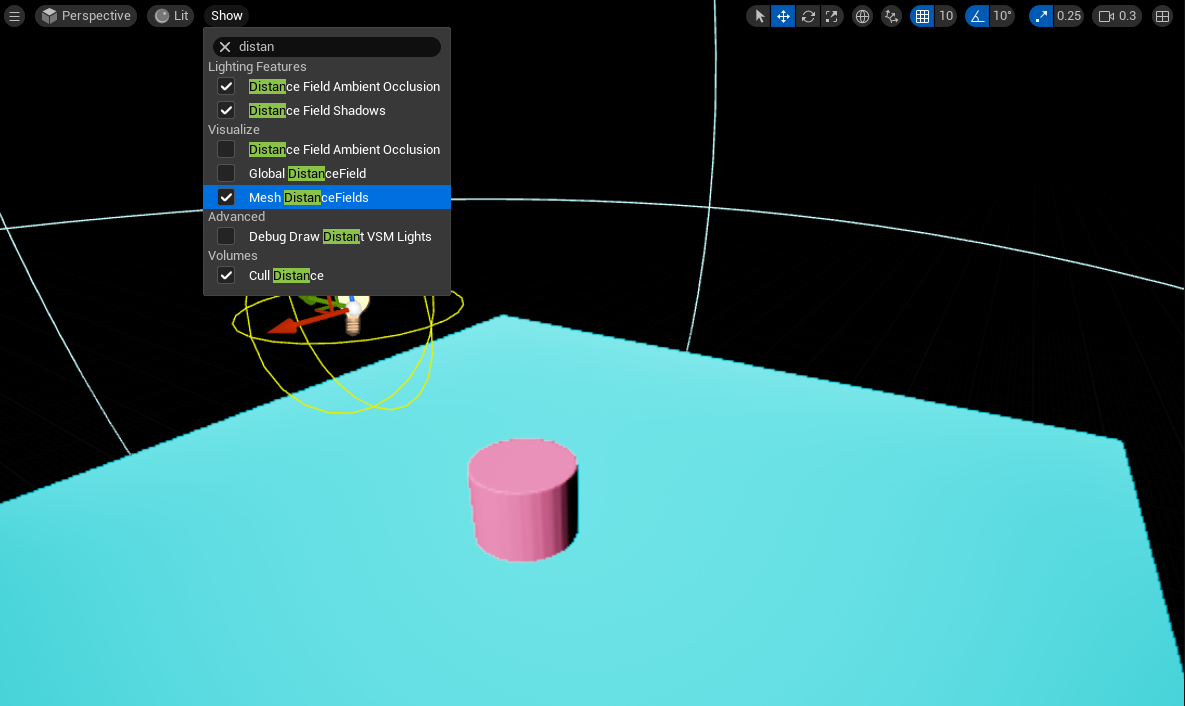 Mesh Distance Fields Visualization
If meshes appear pink/magenta, distance fields are not generated for them — check that Generate Mesh Distance Fields is enabled and reimport the meshes.
Section 14: Hardware Ray Traced Shadows (10 min)
Hardware Ray Traced shadows use your GPU's RTX/DXR hardware to physically trace shadow rays. This produces the most accurate results but requires compatible hardware.
Mobility: Hardware RT shadows work with all light mobilities (Static, Stationary, Moveable).
| VSM | Distance Field | Hardware RT |
|---|---|---|
| VSM | DF | 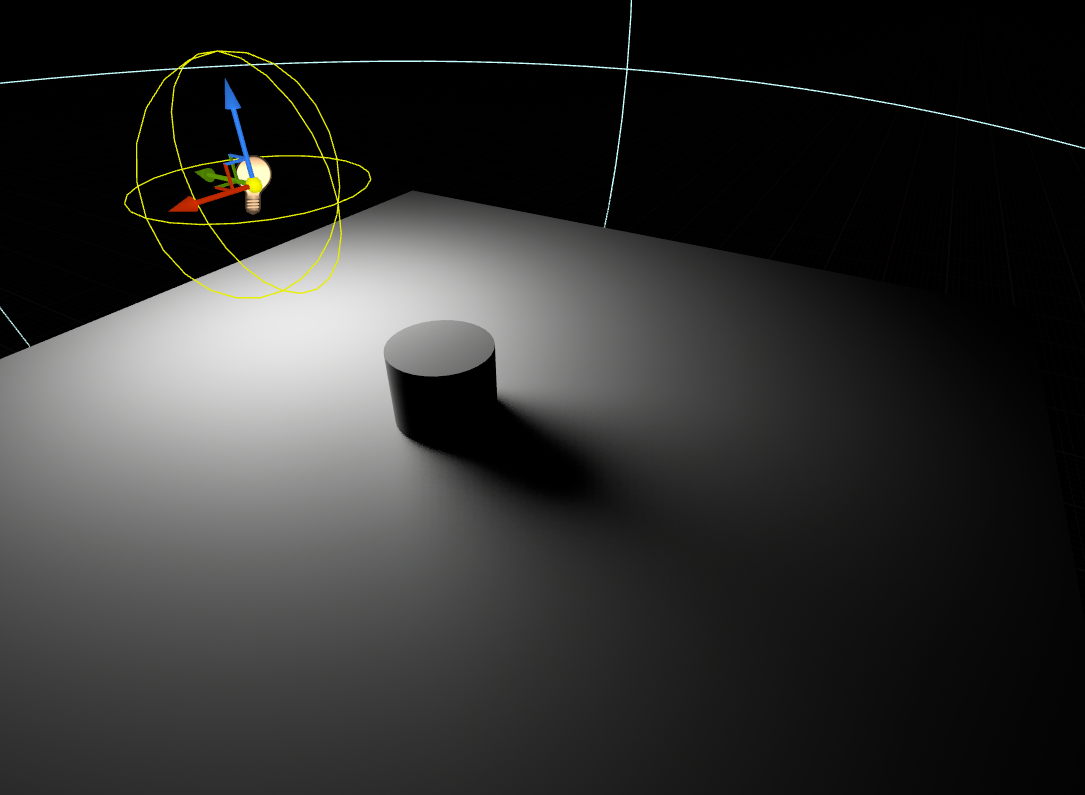 RT RT |
Notice the shadow shape differences — RT shadows reflect the actual light geometry with physically accurate penumbras.
With hardware ray tracing, Unreal shoots rays from surfaces toward the light source:
- Point lights: One ray toward a single point — simple shadow
- Area lights (Rect Light, lights with Source Radius): Multiple rays toward different points across the light's surface
The result: shadow shapes that actually reflect the light's geometry. A Rect Light casts a shadow with a rectangular penumbra. A light with Source Radius creates round soft edges. This matches real-world photography.
Use RT shadows when:
- You need accurate shadow shapes from area lights
- You're doing cinematics or virtual production
- Shadow quality is critical to your visual target
- You have RTX hardware and frame budget to spare
Stick with VSM/Distance Fields when:
- You need to support non-RTX hardware
- Performance is critical (real-time gameplay)
- Shadow shape accuracy isn't important to your art style
Tip: Many projects use both — VSM for gameplay, RT for cutscenes. You can switch per-light or globally.
Far Distance — Culling CVars:
At far distances, Unreal culls objects from the ray tracing scene (TLAS) to save performance. This can cause shadows to disappear on distant objects.
| Console Variable | Default | What It Does |
|---|---|---|
r.RayTracing.Culling | 3 | Master culling mode (0 = disabled) |
r.RayTracing.Culling.Radius | 10000 | Max distance for RT geometry |
r.RayTracing.Culling.Angle | 1 | Solid-angle culling multiplier |
Solid-Angle Culling Explained:
The r.RayTracing.Culling.Angle CVar controls "cone" culling — it removes objects that appear too small in angle from the camera's perspective, especially outside the direct view.
- Base threshold is 5 degrees, and the CVar is a multiplier
- Default
1= ~5° threshold 0.5= ~2.5° (less aggressive, keeps more geometry)0= disable culling entirely (expensive)
Tip: If distant objects are missing RT shadows, try
r.RayTracing.Culling 0to test, then tune the radius/angle for your scene.
Close Distance — Near Clip:
For very close objects, RT can miss geometry due to camera near clip settings. If RT shadows disappear on close objects:
| Console Variable | Default | What It Does |
|---|---|---|
r.SetNearClipPlane | 1 | Sets the camera near clip plane distance |
r.SetNearClipPlane 0.005
This allows RT to trace geometry much closer to the camera (useful for product visualization, VR, etc.).
Step 1: Enable Hardware Ray Tracing
Enable Hardware Ray Tracing
Master switch for all RT features. Requires editor restart.
Edit → Project Settings → Engine → Rendering → Hardware Ray Tracing☑ Support Hardware Ray Tracing
 Hardware Ray Tracing Settings
Step 2: Enable RT Shadows
Per-Light (Recommended) — Selective control:
- Select light actor
- Details panel → Cast Ray Traced Shadows: Enabled
 Cast Ray Traced Shadows - Use Project Setting
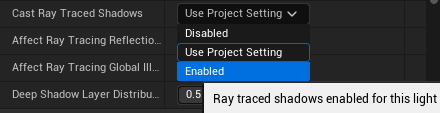 Cast Ray Traced Shadows - Enabled
Global — All lights use RT:
Enable Ray Traced Shadows Globally
Enables RT shadows for all lights in the project at once.
Edit → Project Settings → Engine → Rendering → Ray Tracing☑ Ray Traced Shadows
 Ray Traced Shadows Global Setting
| Approach | Hardware RT | Per-Light Setting | Global Setting |
|---|---|---|---|
| Selective RT | ✓ Required | ✓ On lights you want | Not needed |
| All RT | ✓ Required | Not needed | ✓ Enabled |
RT shadows use sampling — more rays = cleaner shadows but higher GPU cost.
Why noise happens: With limited rays, you're sampling a probability. 4 rays might give 2 blocked, 2 unblocked = 50% shadow. More samples averages this out for cleaner results.
Per-Light: Details panel → Ray Tracing → Samples Per Pixel
Global: Console variable r.RayTracing.Shadow.SamplesPerPixel [value]
| Samples | Quality | Use Case |
|---|---|---|
| 1 | Noisy | Real-time preview |
| 2-4 | Balanced | General gameplay |
| 4-8+ | Clean | Cinematics, final renders |
 Samples Per Pixel - 1 sample
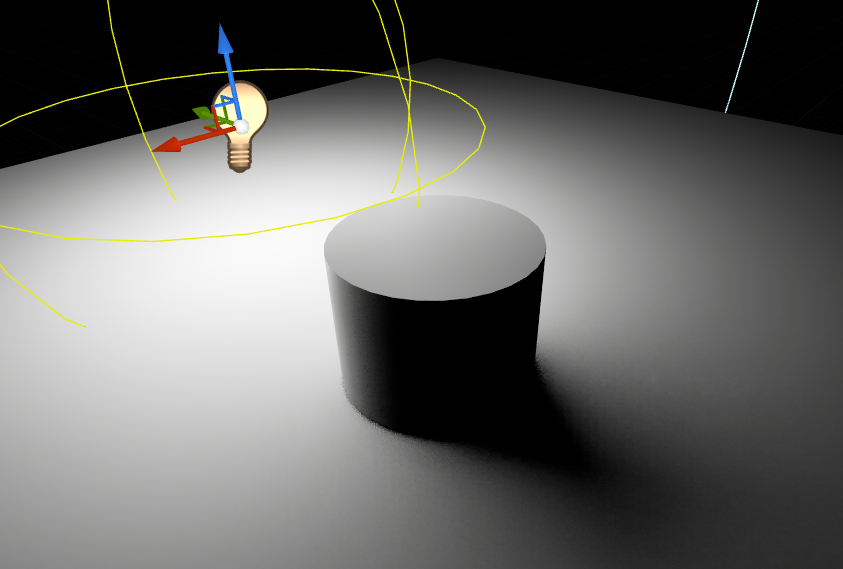 1 Sample - Noisy Shadow
 Samples Per Pixel - 10 samples
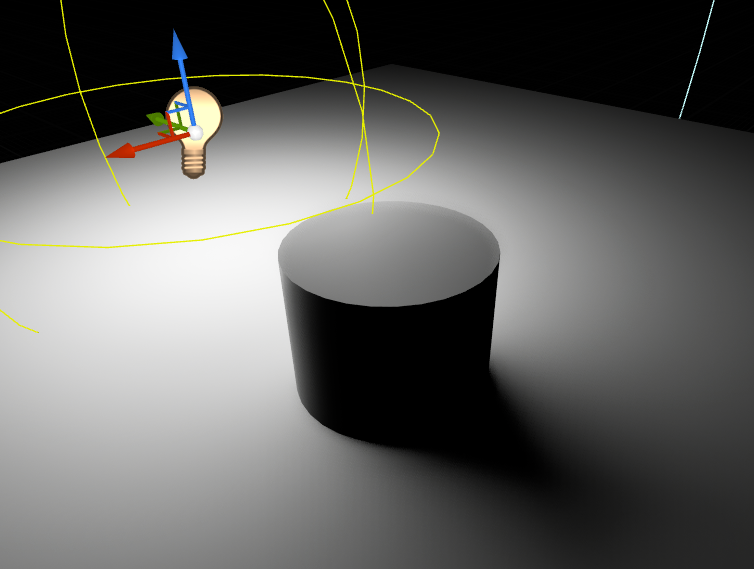 10 Samples - Clean Shadow
Section 15: MegaLights (10 min)
MegaLights is an experimental direct lighting path in UE 5.5 that lets you use orders of magnitude more dynamic, shadowed local lights than traditional deferred lighting.
Traditional deferred lighting tends to have constant quality but cost scales with number of lights.
MegaLights flips that:
- More constant performance cost
- Quality can decrease when too many important lights hit the same pixels (denoiser has to work harder)
- Dense scenes with lots of fixtures (city nights, sci‑fi corridors, interiors with practicals)
- Lots of shadowed local lights where VSM/RT-per-light would be too expensive
- Textured area lights and volumetric fog lighting that would otherwise blow your budget
- Enable in Project Settings → Rendering → Direct Lighting → MegaLights
- MegaLights is designed around Hardware Ray Tracing support
- Per light, you can disable it with Allow MegaLights
- Per light, you can choose MegaLights Shadow Method:
- Ray Tracing (default/recommended): no extra per-light shadow map cost, but depends on ray tracing scene quality
- Virtual Shadow Maps: captures full Nanite detail, but adds per-light overhead and only approximates area shadows
- Avoid lights with huge attenuation bounds affecting the whole level
- Don't place lights inside geometry (wasted samples + can increase noise)
- Merge "clusters of tiny lights" into a few larger area lights where possible
r.MegaLights.Allow 0
Key Points:
- UE5 supports multiple shadow systems, including legacy CSM and modern VSM
- VSM works on any GPU with good quality; shows temporal artifacts on fast motion
- Distance Fields enable long-distance soft shadows (Stationary/Moveable only)
- Hardware RT produces accurate shadow shapes but requires RTX hardware
- MegaLights (UE5.5 experimental) enables hundreds of dynamic shadowed lights with constant performance
- Choose based on your hardware targets, performance budget, and visual requirements
You now know how to create direct lighting and choose the right shadow system. But how do you know if your lighting is too expensive? In Part 5: Performance & Debugging, we'll learn the tools to measure, diagnose, and optimize your lighting setup.