What you'll learn:
- The relationship between Project Settings and Post Process Volumes
- Configure project settings for Lumen and ray tracing
- Why we disable default effects to learn lighting fundamentals
Section 5: Project Settings vs Post Process (5 min)
Unreal has two primary locations for controlling rendering behavior:
| Location | Scope | When It Applies |
|---|---|---|
| Project Settings | Global defaults | Entire project, all levels |
| Post Process Volumes | Scene/area overrides | Specific levels or regions |
Think of it as a hierarchy:
- Project Settings = "This is how lighting works by default in my project"
- Post Process Volume = "But in this scene (or area), override these specific settings"
Not everything exists in both places. Some settings are Project Settings only, some are PPV only, and some exist in both.
| Setting Type | Project Settings | Post Process Volume |
|---|---|---|
| Hardware Ray Tracing | ✓ | — |
| Shadow Map Method | ✓ | — |
| Global Illumination Method | ✓ | ✓ (override) |
| Reflection Method | ✓ | ✓ (override) |
| Lumen Quality Settings | — | ✓ |
| Bloom | ✓ (on/off default) | ✓ (detailed control) |
| Exposure | ✓ (on/off default) | ✓ (detailed control) |
| Ambient Occlusion | ✓ (on/off default) | ✓ (detailed control) |
- Configure Project Settings — Set your global defaults (what we're doing now)
- Add Post Process Volumes later — Override specific settings per-scene when needed
We'll return to Post Process Volumes in Part 11: Indirect Lighting Systems when we need scene-specific Lumen controls.
Section 6: Project Settings for Lighting (8 min)
Now let's configure the actual settings. We'll disable Unreal's helpful defaults — the things that make new projects look decent out of the box — so you can see exactly what each system contributes. We'll re-enable features as we learn them.
Navigate to: Edit → Project Settings → Engine → Rendering
| Edit menu | Project Settings navigation |
|---|---|
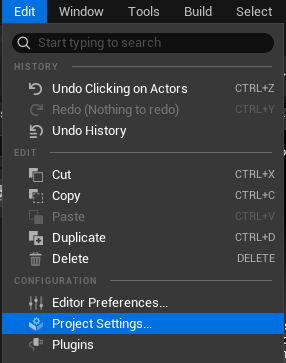 Edit menu - Project Settings Edit menu - Project Settings | 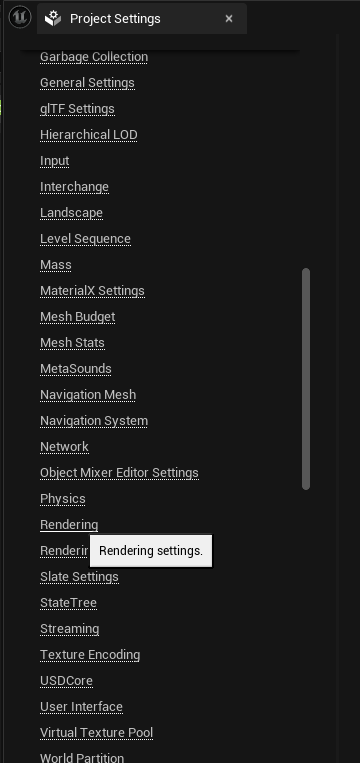 Project Settings navigation Project Settings navigation |
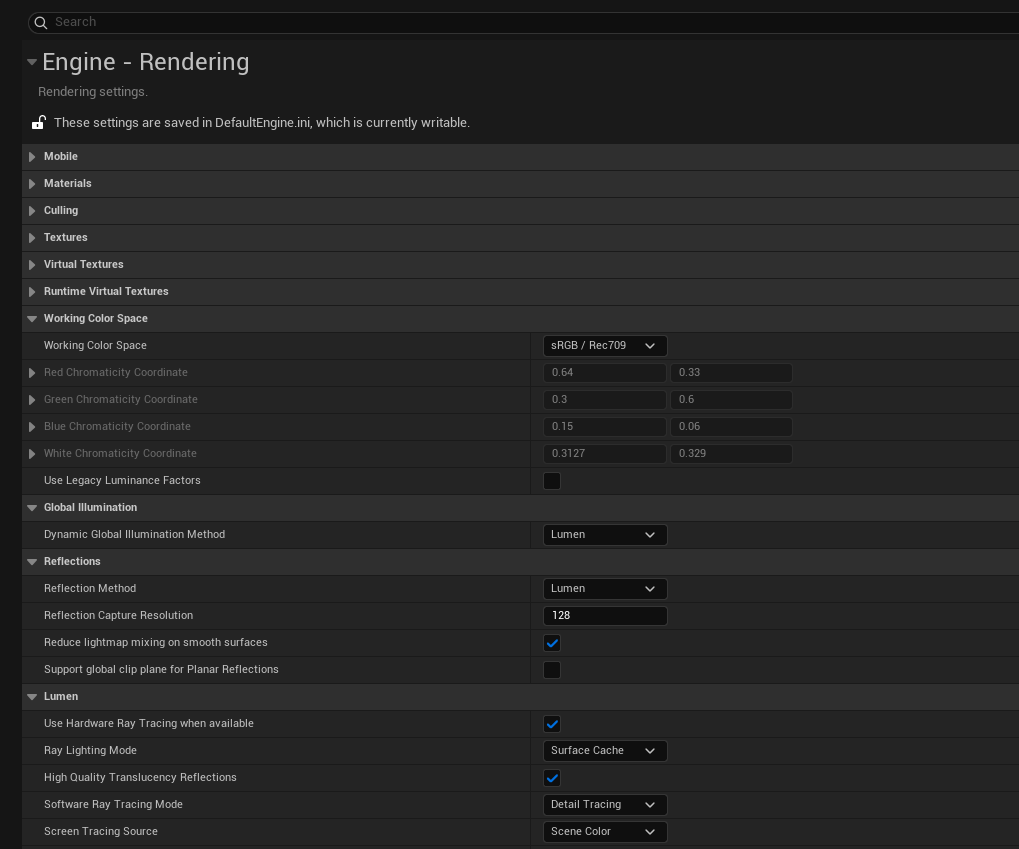 Engine Rendering settings
| Setting | Value |
|---|---|
| Working Color Space | sRGB / Rec709 |
Note: This is a complex topic. Changing this requires different workflows and affects values for lighting, materials, and cameras. We won't cover this in detail in this course.
| Setting | Value |
|---|---|
| Dynamic Global Illumination Method | None |
Note: This controls bounced lighting systems. We'll cover this in depth in Part 10: Indirect Lighting.
| Setting | Value |
|---|---|
| Reflection Method | None |
Note: We'll enable Lumen later when discussing reflections in Part 12: Reflections.
| Setting | Value |
|---|---|
| Use Hardware Ray Tracing when available | ✓ On |
| Ray Lighting Mode | Surface Cache |
Info: Surface Cache is faster (caches lighting data on surfaces); Hit Lighting is more accurate but slower (evaluates lighting at each ray hit). Surface Cache is the default and Unreal's recommended setting for most workflows.
Note: We'll cover Ray Lighting Mode in Part 13: Reflection Systems.
| Setting | Value |
|---|---|
| Mega Lights | Off |
| Ray Traced Shadows | Off |
| Shadow Map Method | Shadow Maps |
Note: We'll cover shadow systems in depth in Part 4: Direct Lighting Systems.
| Setting | Value |
|---|---|
| Support Hardware Ray Tracing | ✓ On |
Hardware Ray Tracing Requirements:
- NVIDIA: RTX 2000 series or newer
- AMD: RX 6000 series or newer
- Windows: Windows 10 Build 1809+ with DirectX 12
- Linux: Supported via Vulkan (experimental) — requires Vulkan-capable GPU drivers
- Consoles: PS5, Xbox Series S/X have native support
If your GPU doesn't support hardware ray tracing, Lumen falls back to software ray tracing (slower but still functional). Keep GPU drivers up to date for best performance.
Troubleshooting: Option Missing or Greyed Out?
If the Hardware Ray Tracing option is missing or greyed out, check:
- Not running DirectX 12 — Ensure your project uses D3D12 as the RHI (see Platform Settings below)
- GPU doesn't support DXR — Your graphics card may not support DirectX Raytracing
- Outdated drivers — Update to the latest GPU drivers from NVIDIA/AMD
- Windows version — Requires Windows 10 Build 1809+ with DirectX 12 support
| Setting | Value |
|---|---|
| Generate Mesh Distance Fields | ✓ On |
Info: Distance Fields are pre-computed mesh data used by multiple lighting systems throughout this course:
- Part 4: Direct Lighting Systems — Distance Field Shadows for soft area shadows
- Part 9: Ambient Occlusion Systems — DFAO (Distance Field Ambient Occlusion)
- Part 11: Indirect Lighting Systems — Lumen's software ray tracing fallback
Enable this even if you have RT hardware — it provides fallback support and additional features. Distance Fields are a recurring thread that connects shadows, AO, and indirect lighting.
| Setting | Value |
|---|---|
| Light Units | Lumens |
| Bloom | Off |
| Ambient Occlusion | Off |
| Ambient Occlusion Static Fraction | Off |
| Auto Exposure | Off |
| Motion Blur | Off |
| Lens Flare | Off |
| Anti-Aliasing Method | None |
Why disable these? We disable these post-processing effects initially so we can see the pure lighting contribution without any enhancements. This helps you understand what each lighting element does on its own. We'll re-enable them as we cover each topic.
Hardware Ray Tracing and many Lumen features require DirectX 12 and Shader Model 6. Configure these in Platform Settings:
Edit → Project Settings → Platforms → Windows
 Platforms navigation
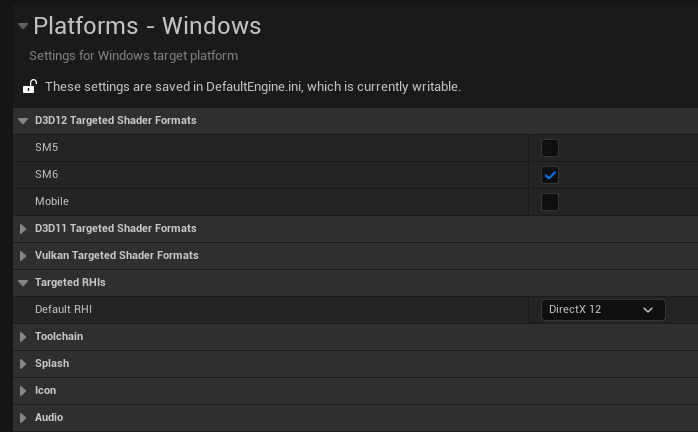 Windows Platform Settings
D3D12 Targeted Shader Formats
| Setting | Value | Why |
|---|---|---|
| SM6 | ✓ On | Required for hardware ray tracing and modern Lumen features |
| SM5 | Off | Legacy shader model — lacks ray tracing intrinsics and wave operations |
SM5 vs SM6: Shader Model 5 (SM5) was designed for DirectX 11 and doesn't support hardware ray tracing. Shader Model 6 (SM6) adds DXR ray tracing intrinsics, wave operations for better GPU parallelism, and other features Lumen relies on. If you're using Lumen with hardware ray tracing, SM6 is required.
Targeted RHIs
| Setting | Value | Why |
|---|---|---|
| Default RHI | DirectX 12 | RHI (Render Hardware Interface) is Unreal's abstraction layer. DirectX 12 provides the low-level GPU access needed for hardware ray tracing and optimal Lumen performance |
Note: After changing RHI settings, restart the editor for changes to take effect.
Key Points:
- Project Settings = global defaults; Post Process Volumes = scene overrides
- Not all settings exist in both places — some are Project Settings only, some are PPV only
- Enable Hardware Ray Tracing and SM6 for modern Lumen features
- Enable Generate Mesh Distance Fields for software ray tracing fallback
- Disable post-processing effects initially to see pure lighting contribution
- We'll configure Project Settings now and return to Post Process Volumes later
Your project is now configured for dynamic lighting with Lumen support. In Part 3: Direct Lighting, we'll create a blank level, set up test geometry, and add our first lights — learning light types, properties, and the one principle that explains shadow softness.